Troubleshooting & Setup Guide for a Recorder
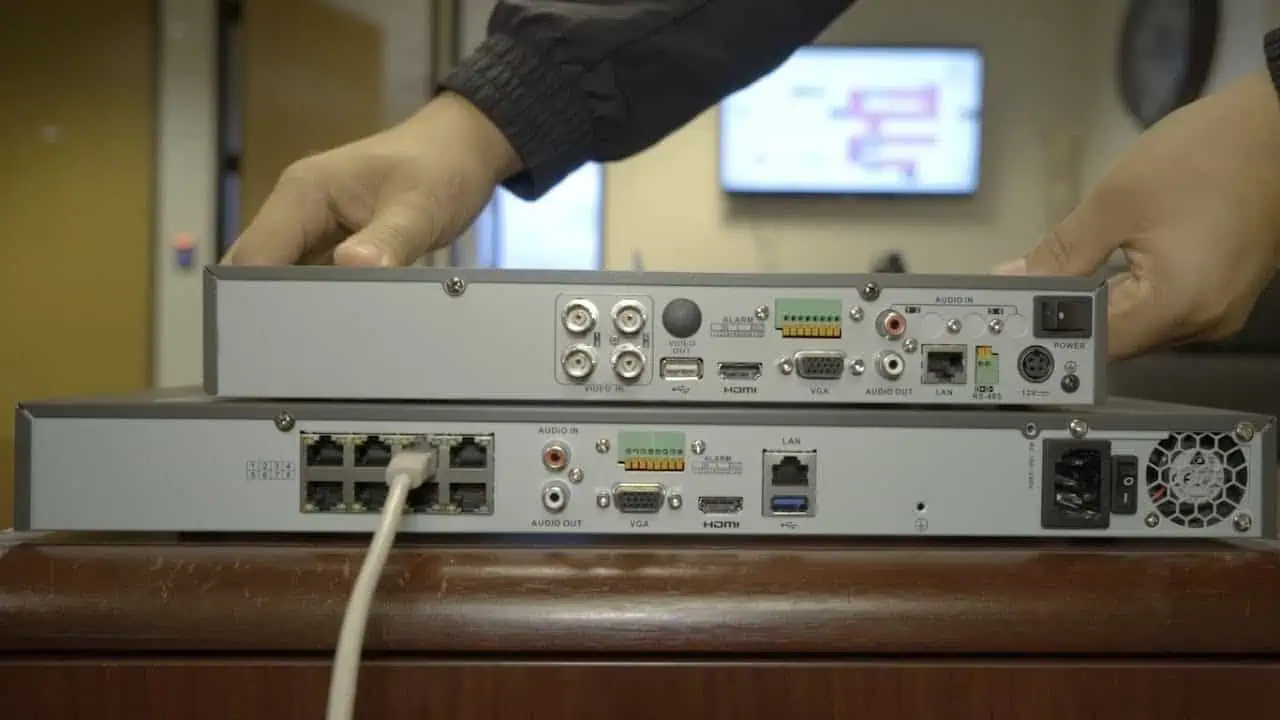
security recorders (NVRs and DVRs) play a critical role in protecting homes and businesses in today’s connected world.
After this blog you can solve Security Recorder Remote Access Issues .They allow users to monitor properties remotely, review recorded footage, and respond quickly to suspicious activity. However, Security Recorder Remote Access Issues can occasionally occur due to network, configuration, or system-related problems.
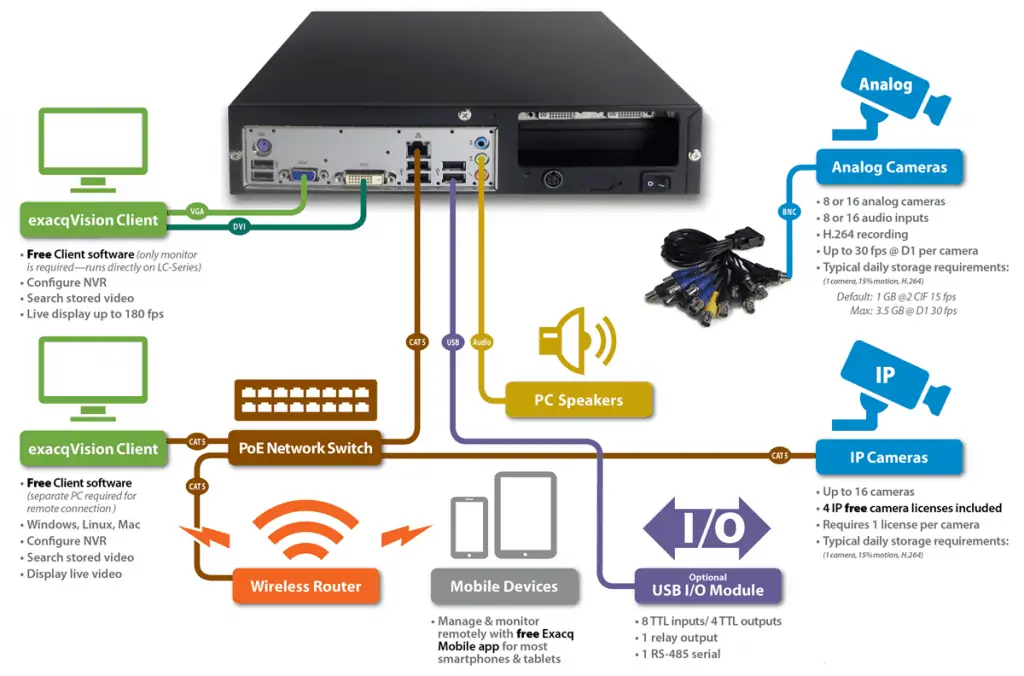
Step 1: Connect the NVR to the Internet
Use an Ethernet cable to connect the NVR to your router.
Some models support Wi-Fi, but wired connections are recommended for stability.
Step 2: Configure Network Settings
Assign IP address, gateway, subnet mask, and DNS.
DHCP is suitable for most setups; static IP is preferred for advanced installations.
Step 3: Configure Port Forwarding (If Required)
Forward the required ports on your router to the NVR’s IP address.
Common ports include HTTP, Server, and RTSP (varies by brand).
Alternatively, enable P2P or cloud-based access for simpler setup.
Step 4: Create Secure User Accounts
Avoid default credentials.
Create strong passwords for each user.
Assign access permissions as needed.
Step 5: Enable Remote Viewing
Enable mobile or web access in the NVR settings.
Install the manufacturer’s official mobile or desktop application.
Adjust stream quality for remote performance.
Step 6: Test Remote Access
Log in from a different network or mobile device.
Confirm live view, playback, and alerts function correctly.
Why Professional Setup Matters
- Incorrect network configuration can lead to:
Loss of remote access
Cybersecurity vulnerabilities
Reduced system performance
Secure IT Global offers professional configuration, secure setup, and ongoing support to ensure your surveillance system performs reliably.
How to Reboot Your Security Recorder Remotely
Rebooting can resolve temporary system or network issues.
Method: Web Interface
Open a browser and enter the recorder’s IP address.
Log in using administrator credentials.
Navigate to System Settings / Maintenance.
Select Reboot / Restart.
Wait several minutes for the system to restart.
Contact Secure IT Global for expert assistance with:
NVR & DVR configuration
Secure remote monitoring
Network optimization
Firmware updates & troubleshooting
This guide from Secure IT Global explains how to troubleshoot common remote access problems, how to reboot a recorder remotely and how to properly set up remote access for an NVR.
👉 Contact
Secure IT Global LLC
167 Madison Ave
New York, NY 10016
(888) 902 2303