
Camera Setup Mistakes Homeowners Make
Many homeowners assume their security cameras are recording—until an incident happens and no footage exists. From incorrect recording settings and storage failures to Wi-Fi issues, power loss, and poor camera placement, small setup mistakes can completely disable your surveillance system. This in-depth guide from Secure IT Global explains the most common home camera setup errors, why cameras fail to record when you need them most, and how to fix each issue properly. Learn how to ensure your security cameras capture reliable footage, day and night, with professional best practices designed for modern home surveillance systems.
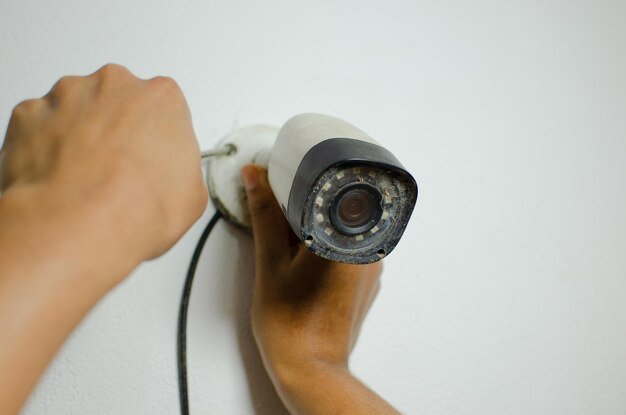
Why Your Camera Didn’t Record When You Needed It
Security cameras are installed for one reason: to capture critical footage when something goes wrong. Yet one of the most common frustrations homeowners face is discovering after a break-in, package theft, or suspicious event that their camera didn’t record anything at all.
This guide breaks down the most common camera setup mistakes homeowners make, explains why cameras fail to record, and shows how to fix these issues before they cost you valuable evidence. Let’s discuss some common mistake.

1. Recording Is Not Actually Enabled
This is the most common mistake and the most overlooked.
Many cameras do not record by default. They may display live video but never save footage unless recording rules are configured.
Recording misconfigurations:
Recording schedule set to “manual” only
Motion recording disabled
Recording set to specific hours only
Event recording enabled, but no trigger zones defined
Why this causes missing footage:
The camera works—but no rule ever tells it to save video.
How to fix it:
Verify continuous recording or motion-based recording is enabled
Confirm schedules are set to 24/7 (or desired hours)
Test by triggering motion and checking playback
2. Storage Is Full, Missing, or Failed
A camera can’t record without storage.
Storage problems:
Hard drive not installed in NVR/DVR
SD card missing or incompatible
Storage device not initialized
Drive failed silently
Cloud subscription expired
Warning signs:
Playback shows “No Recordings”
Storage shows 0GB available
Old footage disappears immediately
How to fix it:
Confirm storage is installed, formatted, and healthy
Check recording retention settings
Replace failing drives proactively
3. Motion Detection Is Set Incorrectly
Motion recording saves space—but only if configured properly.
Common Motion mistakes:
Motion sensitivity set too low
Detection zones not defined
Object filtering blocking events
Motion disabled entirely
Why this fails:
The camera doesn’t “see” motion the way humans do. Poor settings prevent triggers.
How to fix it:
Increase sensitivity gradually
Define clear motion zones
Test with real movement (walking, packages, vehicles)
4. Poor Camera Placement and Angles
Even the best camera won’t record useful footage if it’s aimed incorrectly.
Placement errors:
Camera pointed at direct sunlight
Facing reflective surfaces
Too high or too far from subject
Obstructed by walls, trees, or décor
Consequences:
Motion never triggers
Night footage unusable
Faces and details missed
Best practices:
Mount at optimal height (not ceiling-high)
Angle toward entry paths, not light sources
Test day and night views
5. Wi-Fi Instability or Weak Signal
Wireless cameras are especially vulnerable to connectivity issues.
Wi-Fi problems:
Camera too far from router
Thick walls blocking signal
Network congestion
Router restarts or outages
Why this stops recording:
If the camera loses connection, it may:
Stop uploading footage
Fail to reach cloud storage
Miss motion events entirely
How to fix it:
Use wired connections where possible
Upgrade to mesh Wi-Fi systems
Monitor signal strength at camera location
6. Power Interruptions or Inadequate Power Supply
Cameras need consistent power.
Power-related issues:
Loose power adapters
Faulty PoE injectors
Inadequate power budget
Power outages without backup
Why this matters:
A powered-off camera records nothing—and may reboot silently.
How to fix it:
Secure all power connections
Use quality PoE switches
Add UPS backup for recorders
7. Date and Time Are Incorrect
This sounds minor—but it’s critical.
Problems caused by wrong time:
Footage saved under wrong timestamps
Events appear “missing”
Playback searches fail
How to fix it:
Sync camera and recorder time
Enable automatic time sync (NTP)
Verify daylight saving settings
8. Firmware Is Outdated
Outdated firmware can break recording functions.
Risks of old firmware:
Motion detection bugs
Storage failures
Network instability
Security vulnerabilities
Best practice:
Keep cameras and recorders updated
Schedule firmware checks quarterly
Avoid updates during active recording hours
9. User Permissions Restrict Playback
Sometimes footage exists—but you can’t see it.
Common permission issues:
Logged in as limited user
Playback rights disabled
Camera access restricted
Solution:
Log in as administrator
Verify user roles
Grant playback permissions
10. Assuming Cloud Recording “Just Works”
Cloud systems still depend on:
Active subscriptions
Internet connectivity
Account authentication
If any part fails, recording stops.
Fix:
Verify subscription status
Test cloud playback regularly
Enable local backup where possible
How Secure IT Global Prevents These Failures
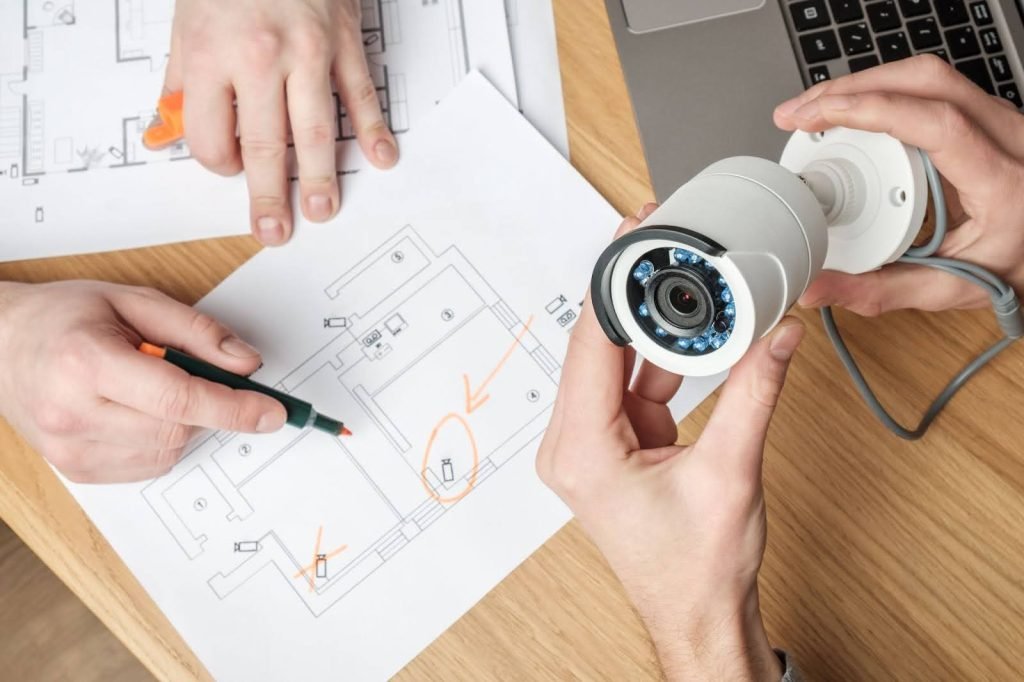
Secure IT Global designs and installs surveillance systems that record when it matters.
We:
Validate recording paths
Test storage and retention
Optimize motion detection
Secure network connectivity
Monitor system health
Your camera system should never be a guess, it should be reliable evidence. Many homeowners assume security cameras work automatically once installed. In reality, it’s not the right thought.
Contact with us for professional camera setup, optimization and troubleshooting.
Secure IT Global LLC
Brooklyn, NY
(888) 902 2303